How to Edit Playlist
Basic Editing Methods
How to Delete Existing Rows
When deleting existing rows from the template, following these steps allows safe deletion:
- Delete columns B and C of the rows you want to remove (can span multiple rows)
- Delete column E and onwards of the rows you want to remove (can span multiple rows)
If you delete rows in bulk without following the above steps, as explained below, you need to verify that:
- The
idcolumn maintains sequential numbering - There are no rows with red background in the hidden column D
videoId
Explanation of Each Row
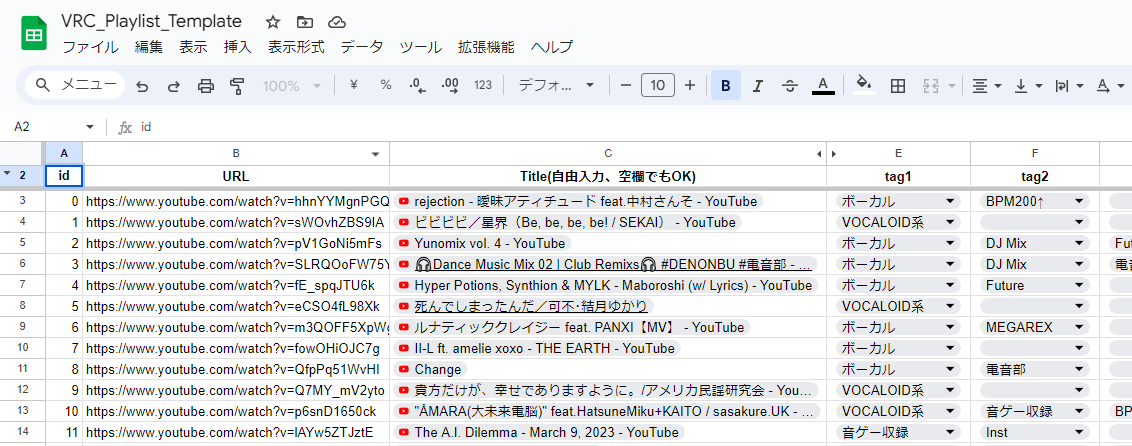
- id
Sequential numbers that don’t overlap. Basically no need to touch.
If you delete entire rows later, you need to ensure they remain sequential.
- URL
Enter the URL of the video you want to register in the playlist.
Only YouTube URLs are supported. Shortened URLs are also OK.
If you enter an incorrect URL or the same video, the background will turn red.
- Title
A place where you can enter titles etc. for identification. It’s OK to leave blank.
The text entered here is not used in the VRChat gimmick.
- tag1, tag2, tag3…
Select and enter tags. How to add tags is explained later.
- videoId (hidden)
Automatically filled from URL. No need to touch.
How to Add Tags
Select the “tags” sheet and add the tag names you want to add in column A.
Commas cannot be used.
How to Add More Than 6 Tags
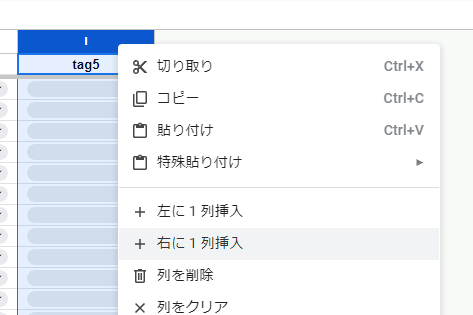
Right-click on the “tag5” column and insert a column to the right.
Setting Default Playback Video
You can set default playback videos from the playlist at any time without embedding default videos in the video player.
- Add “DefaultPlay” to the tag list
- Add the “DefaultPlay” tag to videos you want to play by default
That’s all!
Please refer to the template you copied initially.
※You can set a maximum of 20 songs for default playback
※When specifying multiple songs, they are added to the queue in order from top
※This feature can only be used when used together with specified video players. Please check here.
Sharing with Friends
Press the “Share button” in the top right of the spreadsheet and add your friend’s email address in “Add users or groups” to invite them.
If you give edit permissions, they can edit together, not just view.